













Troubleshooting ALB mTLS with GMO CA Bundle
31/07/2026
452
This article will list the steps for troubleshooting a real issue when implementing ALB mTLS using GMO CA Bundle
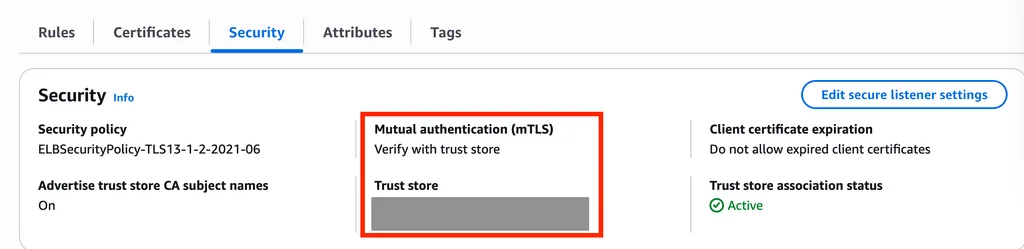
Current System mTLS Configuration
- ALB is configured with mTLS
- CA bundle from file includes 2 certificates
#1
        Serial Number: 04:00:00:00:00:01:21:58:53:08:a2
        Subject: OU=GlobalSign Root CA - R3, O=GlobalSign, CN=GlobalSign
        Validity
            Not Before: Mar 18 10:00:00 2009 GMT
            Not After : Mar 18 10:00:00 2029 GMT
#2
        Serial Number: 48:1b:6a:09:13:bd:80:24:ca:5d:22:f0:14:f3
        Subject: C=BE, O=GlobalSign nv-sa, CN=GlobalSign PersonalSign 2 CA - SHA256 - G3
        Validity
            Not Before: Jun 15 00:00:00 2016 GMT
            Not After : Jun 15 00:00:00 2024 GMT
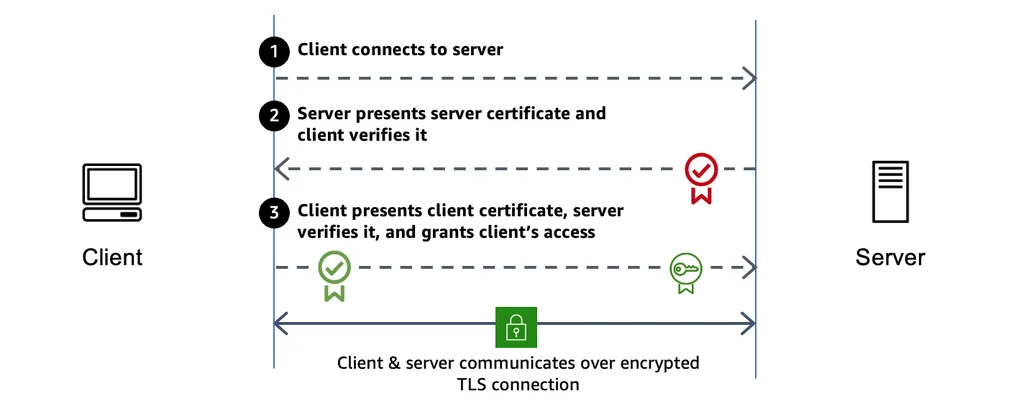
Architecture Shows How ALB mTLS Work
Current System Behavior
- A new client certificate is issued by accessing the GMO dashboard.
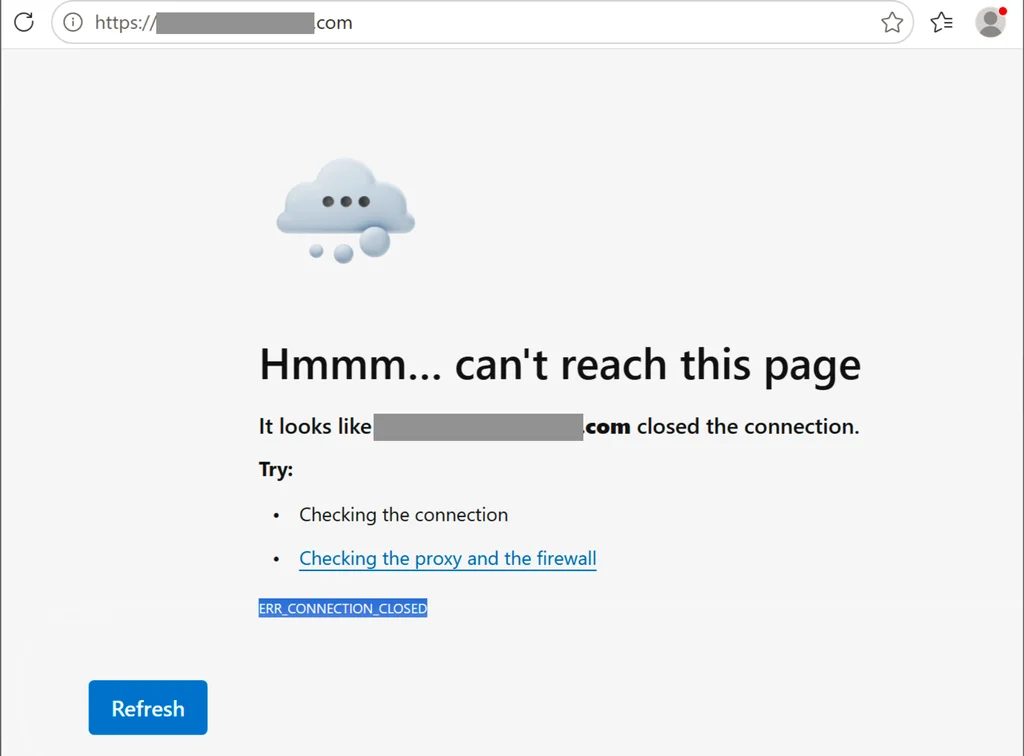
- When end users open a website using a browser, they get a connection error.
- Current/not-expired client certificate still working well, tested by ST.
- ALB connection log when the issue happened, mostly is
UnmappedConnectionError
#    client_ip    tls_protocol    tls_verify_status    total
1    104.28.174.90    TLSv1.3    Failed:UnmappedConnectionError    13
2    54.249.119.10    TLSv1.3    Failed:UnmappedConnectionError    4
3    18.209.35.66    TLSv1.3    Failed:UnmappedConnectionError    1
4    193.24.210.169    TLSv1.3    Failed:UnmappedConnectionError    1
5    13.112.248.150    TLSv1.3    Failed:UnmappedConnectionError    1
6    128.203.203.233    SSLv3    Failed:UnmappedConnectionError    1
7    3.89.182.114    TLSv1.3    Failed:UnmappedConnectionError    1
8    13.112.248.150    -    -    1
Test Scenarios To Reproduce The Issue and Find The Root Cause
###Test setup
- Environment: Ubuntu 20 docker container install with CURL
- Tool:
- CURL to make HTTP request
- Wireshark to capture network traffic
Command to run
# specify where SSLKEYLOGFILE is stored
# that file will be used to decrypt TLS traffic in Wireshark
export SSLKEYLOGFILE=/path/to/SSLKEYLOGFILE

# run Wireshark and listen on the network interface used for Internet access

# make HTTP request, include pfx file to perform mTLS
curl -vv --cert-type P12 --cert <path/to/pfx/file>:"<pfx_password>" https://website.com
Test case
- #1 Use old pfx file that still working
- #2 Use new pfx file that does not working
Inspect CURL output and Wireshark result

Locally validate Leaf cert and Intermediate cert with root CA cert setup in ALB Trust Store
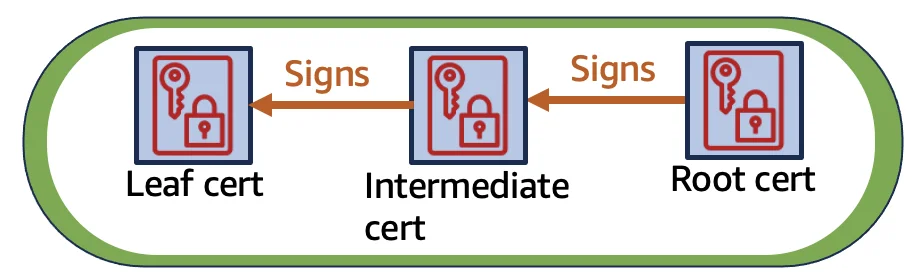
Extract leaf cert and intermediate certs from pfx file by executing this command
openssl pkcs12 -info -in <filename>.pfx
Copy each section below into a separate files with extension .pem
-----BEGIN CERTIFICATE-----
...
-----END CERTIFICATE-----
Verify which pem file is the leaf cert by executing this command
openssl x509 -text -noout -in leaf-cert.pem | grep CA:
If the output is:
- CA:FALSE > It is a leaf cert
- CA:TRUE > Is is a intermediate cert
Combine all intermediate cert into 1 file pem, the output will look like
-----BEGIN CERTIFICATE-----
...
-----END CERTIFICATE-----

-----BEGIN CERTIFICATE-----
...
-----END CERTIFICATE-----
Validate leaf cert and intermediate cert with root CA cert setup in ALB Trust Store by executing command
openssl verify -CAfile cp-dev.net_client.pem -untrusted <intermediate-cert-file> <leaf-cert-file>
Validate result
| Case | Result | Conclusion |
|---|---|---|
| Old pfx file | $ openssl verify -CAfile cp-dev.net_client.pem -untrusted cert_ok/intermediate-cert.pem cert_ok/leaf-cert.pem | Old pfx file contains leaf cert and intermediate certs that VALID with current root CA cert in ALB Trust Store. Work root CA cert serial number: 04:00:00:00:00:01:21:58:53:08:a2 |
| New pfx file | $ openssl verify -CAfile cp-dev.net_client.pem -untrusted cert_not_ok_2/intermediate-cert.pem cert_not_ok_2/leaf-cert.pem <br>C=BE, O=GlobalSign nv-sa, CN=GlobalSign GCC R45 Client Authentication CA 2024<br>error 20 at 1 depth lookup: unable to get local issuer certificate <br>error cert_not_ok_2/leaf-cert.pem: verification failed | Old pfx file contains leaf cert and intermediate certs that NOT VALID with current root CA cert in ALB Trust Store It means that when browser use new client certificate – pfx file, ALB will check certificates with its Trust Store. While the client certificate is not valid, ALB will reject connection (empty HTTP response) and browser will show ERR_CONNECT_CLOSE |
Identify suitable root CA cert for new pfx
Inspect CA issuers of intermediate certificate by executing this command
$ openssl x509 -text -noout -in intermediate-cert.pem | grep "CA Issuers"
                CA Issuers - URI:http://secure.globalsign.com/cacert/clientauthrootr45.crt
Download root CA certificate by access this URL: http://secure.globalsign.com/cacert/clientauthrootr45.crt Inspect root CA certificate by executing command
$ openssl x509 -text -noout -in clientauthrootr45.crt
Certificate Serial Number: 76:53:fe:b9:f5:c7:db:ea:8b:a4:78:d4:3e:3d:6b:f6
It’s a valid certificate when search in https://jp.globalsign.com/support/rootcertificates/clientcert.html
Re-validate validate Leaf cert and Intermediate cert with clientauthrootr45.crt root CA cert
Inspect CA issuers of intermediate certificate by executing this command
$ openssl verify -CAfile clientauthrootr45.crt -untrusted cert_not_ok_2/intermediate-cert.pem
cert_not_ok_2/leaf-cert.pem
valid root CA cert for leaf cert and intermediate cert extract from pfx file
Solve the problem: Update ALB Trust Store CA bundle with 2 certs to ensure that even if the client only sends the leaf cert, ALB can validate
1. Download GlobalSign Client Authentication Root R45 and GlobalSign GCC R45 Client Authentication CA 2024 certificates
2. Merge 2 new certificates with the current CA bundle file into 1 PEM file with format:
-----BEGIN CERTIFICATE-----
Cert #1 content
-----END CERTIFICATE-----
-----BEGIN CERTIFICATE-----
Cert #2 content
-----END CERTIFICATE-----
-----BEGIN CERTIFICATE-----
Cert #3 content
-----END CERTIFICATE-----
-----BEGIN CERTIFICATE-----
Cert #4 content
-----END CERTIFICATE-----
3. Verify the new CA bundle with the leaf cert and the intermediate cert that were extracted from old/new PFX file
# old pfx
$ openssl verify -CAfile ca-bundle.pem -untrusted cert_ok/intermediate-cert.pem cert_ok/leaf-cert.pem
cert_ok/leaf-cert.pem: OK

# new pfx
$ openssl verify -CAfile ca-bundle.pem -untrusted cert_not_ok_2/intermediate-cert.pem cert_not_ok_2/leaf-cert.pem
cert_not_ok_2/leaf-cert.pem: OK
4. Upload ca-bundle.pem to ALB trust store S3 bucket
5. Replace old trust store CA bundle with new one
- Access Trust Store console
- Select trust store > Edit > S3 URI > Browse S3 > S3 Trust Store Bucket > ca-bundle.pem > Choose > Replace CA bundle
6. Verify access with new pfx with CURL
curl -vv --cert-type P12 --cert <path/to/pfx/file>:"<pfx_password>" https://website.com
Expected result: has HTTP response
Root cause conclusion
- Direct: The new PFX file generated by us contains the leaf cert and intermediate cert didn’t match/valid with the CA cert bundle from the old system. Only the PFX file generated by the old vendor is valid.
- Indirect: The process of issue client certificate/PFX file that the old vendor and we proceed may be different